
Building a gaming computer on a limited budget requires careful planning. Every component matters, from the processor and graphics card to the motherboard, storage, and power supply. However, some features are less obvious when choosing parts, including wireless connectivity. One common question among new builders is whether Bluetooth is necessary for gaming or simply an optional extra.
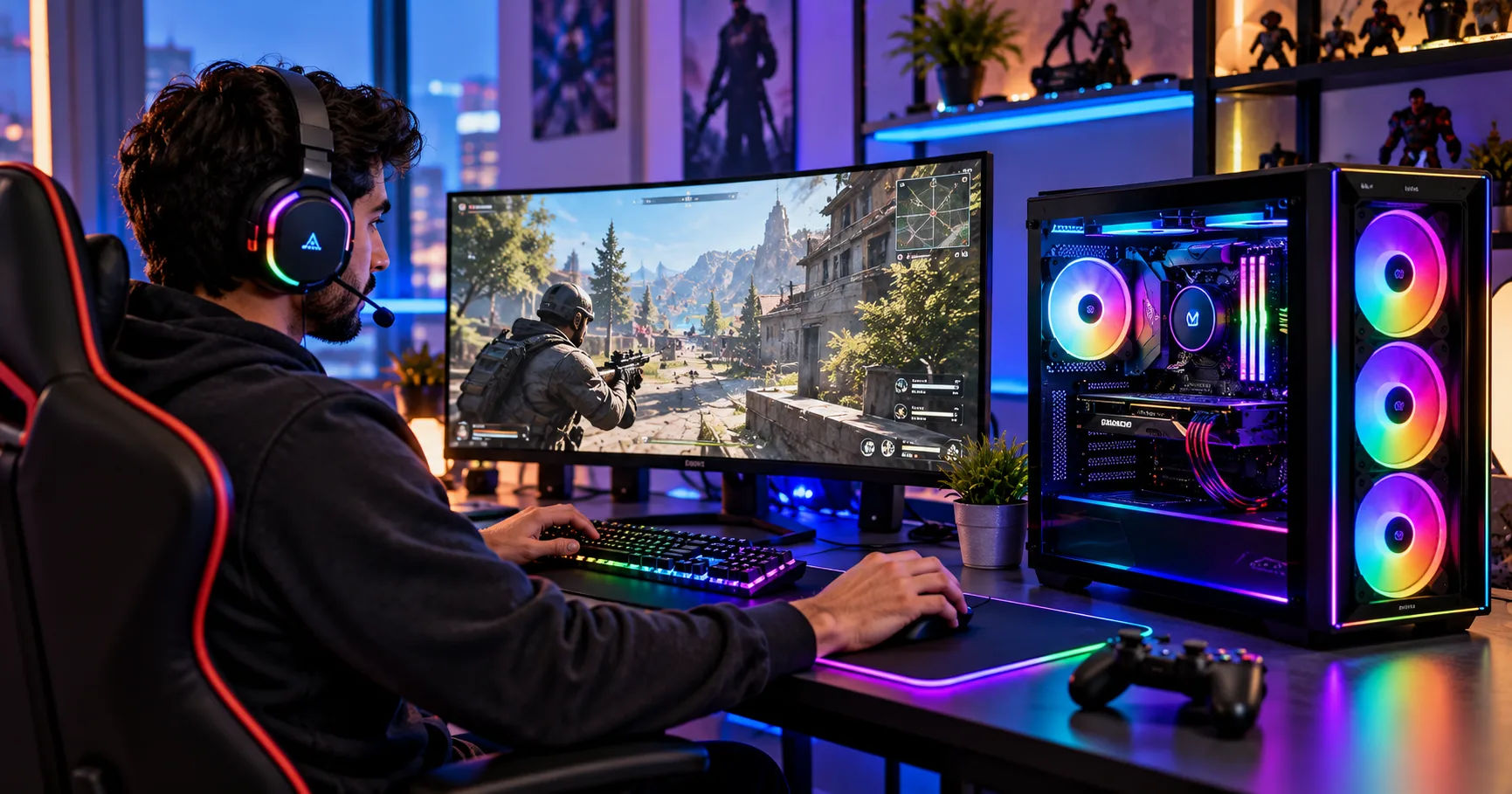
A budget gaming pc does not necessarily need Bluetooth to run games smoothly or deliver an enjoyable gaming experience. Most games depend primarily on processing power, graphics performance, memory, and storage rather than Bluetooth connectivity. Nevertheless, Bluetooth can make a computer more convenient by allowing you to connect wireless controllers, headphones, keyboards, mice, and other compatible devices without using extra cables.
The best choice depends on your gaming habits, the accessories you already own, and how much money you want to spend. If you prefer wired peripherals and want to direct every available dollar toward performance, Bluetooth may not be a priority. If you enjoy playing with wireless controllers or using Bluetooth headphones, having this feature can make your setup more flexible. Understanding its advantages and limitations will help you decide whether it deserves a place in your build.
What Is Bluetooth, and How Does It Work?
Bluetooth is a short-range wireless technology that allows compatible electronic devices to communicate without a physical connection. It is commonly found in smartphones, laptops, headphones, speakers, controllers, and many other everyday devices.
Unlike a wired connection, Bluetooth sends information through radio signals. This means you can connect supported accessories to your computer without plugging each one into a USB port.
For example, you could connect Bluetooth headphones to listen to game audio, pair a compatible controller to play from your chair, or use a wireless keyboard to navigate your desktop.
Bluetooth is designed for convenient communication over relatively short distances. Its performance depends on factors such as the Bluetooth version, the connected devices, interference, and physical obstacles between them.
Is Bluetooth the Same as Wi-Fi?
No. Although Bluetooth and Wi-Fi both use wireless signals, they serve different purposes.
Wi-Fi is generally used to connect a computer to a local network or the internet. It supports activities such as downloading games, playing online multiplayer matches, streaming videos, and browsing websites.
Bluetooth is mainly used to connect nearby accessories. It is useful for headphones, controllers, speakers, and other compatible peripherals.
Some motherboards include both Bluetooth and Wi-Fi, while others include neither. A computer can have Wi-Fi without Bluetooth, Bluetooth without Wi-Fi, or both features together.
Understanding this distinction is important because Bluetooth is not required for online gaming. Your computer can connect to the internet through Ethernet or Wi-Fi and play online games without Bluetooth being enabled.
Does a Budget Gaming PC Need Bluetooth?
The simple answer is no. Bluetooth is an optional convenience feature rather than a basic requirement for a gaming computer.
You can install games, play demanding titles, connect to online servers, and use standard gaming accessories without Bluetooth. A wired keyboard, wired mouse, and compatible wired headset can provide everything many players need.
For gamers who want maximum performance at the lowest possible price, spending money on a better graphics card or processor is often more valuable than paying extra for wireless connectivity.
However, the answer changes depending on how you intend to use your computer. Someone who owns several wireless accessories may benefit significantly from built-in Bluetooth.
When Bluetooth Is Not Necessary
Bluetooth may not be important if you use traditional wired gaming accessories. A USB keyboard and mouse connect directly to the computer, while a wired headset can provide game audio and microphone input.
Many competitive gamers also prefer wired peripherals because they do not need to manage battery levels or worry about wireless interference affecting their equipment.
If your motherboard does not include Bluetooth, you can still build a complete gaming setup. There is no need to spend additional money on wireless features that you are unlikely to use.
When Bluetooth Is Useful
Bluetooth becomes more valuable when you want a clean, flexible gaming setup.
You might prefer playing games from a sofa with a wireless controller, listening through wireless headphones, or connecting a portable speaker when you are not gaming. Bluetooth can also make it easier to switch between different compatible accessories.
For people who regularly use wireless devices, this feature can improve everyday convenience beyond gaming.
The important point is that Bluetooth adds flexibility, not extra gaming power. It will not directly increase your frame rate or improve your graphics quality.
What Are the Benefits of Bluetooth for PC Gaming?
Bluetooth offers several practical benefits that can improve your gaming setup. Although it is not essential, it can be useful for players who value comfort and flexibility.
1. Connecting Wireless Gaming Controllers
One of the most useful applications of Bluetooth is connecting compatible wireless controllers.
Many PC games support controllers, particularly racing games, sports games, platformers, and action-adventure titles. A controller can provide a comfortable alternative to a keyboard and mouse.
If you own a compatible PlayStation controller, Xbox controller, or third-party gamepad, Bluetooth may allow you to connect it without a cable. However, wireless support varies by controller model, and some controllers use proprietary wireless technology instead.
A budget gaming pc with Bluetooth can therefore offer a more console-like experience without requiring a separate cable for every gaming session.
You should still check whether your controller supports Bluetooth and whether your favorite games recognize it correctly.
2. Using Wireless Headphones
Wireless headphones can make gaming more comfortable by eliminating cables around your desk.
You can move around your room, adjust your seating position, and listen to music without being physically connected to your computer. Bluetooth headphones can also be useful when watching videos or listening to podcasts between gaming sessions.
However, not every Bluetooth headset provides the same experience.
Some Bluetooth headphones introduce noticeable audio delay, which can make sounds feel slightly disconnected from on-screen actions. This is particularly relevant in competitive shooters, rhythm games, and other titles that require precise timing.
Bluetooth microphone performance can also vary. Certain headsets reduce playback quality when their microphones are active because they switch to a hands-free communication mode.
For competitive gaming, a wired headset or a gaming headset with a dedicated low-latency USB wireless receiver may be a better choice.
3. Connecting Wireless Keyboards and Mice
Bluetooth can connect compatible keyboards and mice without requiring a separate USB receiver for each device.
This can help keep your desk organized and leave more USB ports available for other equipment.
However, Bluetooth is not always the best connection method for gaming mice. Some gaming mice offer a dedicated 2.4 GHz wireless receiver that is designed to provide responsive input.
If your priority is competitive performance, compare the connection options supported by your mouse before choosing Bluetooth.
For ordinary desktop use, browsing, and casual gaming, Bluetooth keyboards and mice can work well. For highly competitive games, wired connections or purpose-built wireless receivers may offer a more suitable experience.
4. Connecting Speakers and Other Accessories
Bluetooth can also connect compatible speakers and selected accessories.
For example, you could use a portable speaker when watching movies or listening to music. You might also connect a supported gamepad, presentation remote, or other compatible device.
These additional uses can make Bluetooth worthwhile even if you do not play games with wireless controllers.
Nevertheless, compatibility is important. Not every accessory supports Bluetooth, and some wireless products require a specific USB receiver instead.
Does Bluetooth Affect Gaming Performance?
Bluetooth does not directly improve or reduce your computer's graphics performance simply because it is available.
Your processor, graphics card, memory, storage, and game settings have a much greater influence on frame rates and loading times.
For example, adding Bluetooth to a computer does not turn a low-performing graphics card into a powerful one. Likewise, disabling Bluetooth will not normally increase your frames per second in a meaningful way.
However, Bluetooth can affect the responsiveness of the accessories connected through it.
Understanding Input Latency
Latency is the delay between an action and the corresponding response.
When you press a button on a controller, the signal must reach the computer before the game can respond. Wireless communication introduces some transmission delay, although the actual amount depends on the device, connection method, and surrounding conditions.
For casual games, small delays may be difficult to notice. In competitive games, even a modest delay can affect how responsive a controller or mouse feels.
Bluetooth is convenient, but a wired connection or a well-designed dedicated wireless receiver may be preferable when low latency is especially important.
Understanding Audio Delay
Audio latency is another factor worth considering.
When you fire a weapon, jump, or perform another action in a game, you generally expect the sound to occur almost immediately. If your headphones introduce too much delay, the audio may feel out of sync with the action.
This does not mean all Bluetooth headphones are unsuitable for gaming. Their performance varies according to the headphones, codecs, software, and connection conditions.
If you mostly play slow-paced strategy games, single-player adventures, or casual titles, Bluetooth audio may be perfectly acceptable.
For competitive gaming, test your headphones before relying on them for important matches. A wired headset or a compatible low-latency wireless gaming headset can be a safer choice.
Should You Choose a Motherboard With Built-In Bluetooth?
If you are building a gaming computer from scratch, choosing the right motherboard is an important decision.
Some motherboards include built-in Bluetooth, while others require a separate adapter. Models with integrated wireless connectivity may cost more, but the additional expense can be worthwhile if you regularly use wireless accessories.
Advantages of Built-In Bluetooth
A motherboard with Bluetooth offers a convenient, integrated solution.
You do not need to purchase a separate adapter just to connect compatible devices. Once the appropriate drivers are installed, you can pair supported accessories through your operating system.
Many motherboards that include Bluetooth also provide Wi-Fi. This combination can be useful if you want wireless internet access and wireless peripherals in the same computer.
However, do not assume that every motherboard with Wi-Fi automatically includes Bluetooth. Check the manufacturer's specifications before buying.
Disadvantages of Built-In Bluetooth
The main disadvantage is cost.
If you never use wireless accessories, paying extra for built-in Bluetooth may not provide much value. A less expensive motherboard without Bluetooth could be a better choice if it offers the essential features you need.
You should also consider the other specifications that matter to your build, including processor compatibility, memory support, storage connections, expansion slots, and upgrade options.
For most budget-conscious builders, these factors deserve attention before optional wireless features.
Is Built-In Bluetooth Better Than a Separate Adapter?
Both options can work well.
Built-in Bluetooth keeps your setup simple and avoids using an additional USB port for a separate adapter. Its actual performance depends on the motherboard's wireless hardware, antenna arrangement, drivers, and surrounding environment.
A USB Bluetooth adapter is a practical alternative when your motherboard lacks the feature. It can add Bluetooth without requiring you to replace the motherboard or rebuild the computer. Windows supports adding Bluetooth through a compatible USB adapter.
If you choose an adapter, buy one that supports your devices and operating system. A very cheap, poorly supported adapter may cause connection problems that make wireless accessories frustrating to use.
How to Add Bluetooth to a Budget Gaming PC
If your computer does not have Bluetooth, you do not need to replace your motherboard. There are several ways to add wireless connectivity, depending on your budget and preferences.
1. Use a USB Bluetooth Adapter
A USB Bluetooth adapter is one of the easiest ways to add Bluetooth to a desktop computer.
It is a small device that plugs into a USB port. Once connected and configured, it allows your computer to communicate with compatible Bluetooth accessories.
The main advantages include:
-
Affordable: Many basic adapters are inexpensive.
-
Easy installation: Most simply plug into a USB port, although some may require drivers.
-
Convenient: You can connect compatible controllers, headphones, and other accessories.
-
Flexible: You can move the adapter to another compatible computer when needed.
Before buying an adapter, check its supported Bluetooth version, operating system compatibility, and advertised range.
You should also consider the placement of your computer. If the desktop is underneath a desk or surrounded by obstacles, placing the adapter in a more open position using a compatible USB extension cable may help improve connectivity.
2. Install a PCIe Bluetooth and Wi-Fi Card
Another option is a PCIe wireless card.
These cards install into a compatible expansion slot on your motherboard. Many models include both Wi-Fi and Bluetooth, making them useful if you want to upgrade your computer's wireless capabilities.
A PCIe card may provide a convenient permanent solution, particularly if you want Wi-Fi as well as Bluetooth.
However, installation requires opening the computer case. Some cards also need a connection to an internal USB header on the motherboard to enable Bluetooth functionality.
Check the manufacturer's installation instructions before purchasing one.
For someone who only needs Bluetooth for a single controller, a USB adapter may be the simpler and less expensive solution.
3. Connect Your Devices With Cables
You can avoid Bluetooth altogether by using wired accessories.
Connect a compatible controller through USB, plug your keyboard and mouse into the computer, and use a wired headset for audio.
This approach can be particularly attractive when you are trying to build an affordable gaming system.
Wired accessories do not require Bluetooth pairing, and they eliminate the need to charge their batteries if they receive power directly through the cable.
For many players, this is all they need.
How Much Should You Spend on Bluetooth?
When planning a computer build, it is important to distinguish essential components from optional features.
Your processor and graphics card directly affect the games you can play and the settings you can use. Your motherboard determines compatibility and expansion options. Bluetooth mainly affects how you connect supported accessories.
That difference should guide your spending decisions.
Prioritize Performance First
Suppose you have a limited budget and must choose between a slightly better graphics card and a motherboard with built-in Bluetooth.
If the graphics card upgrade would noticeably improve your gaming experience, it will usually be the more valuable purchase.
You can add Bluetooth later with an adapter if you discover that you need it.
However, this does not mean you should always choose the cheapest motherboard available. A reliable motherboard with suitable connectivity, sufficient expansion options, and support for future upgrades may offer better long-term value.
The goal is to balance performance, reliability, and convenience.
Consider Your Existing Accessories
Before spending money on Bluetooth, make a list of the accessories you already own.
If your controller connects through USB and your headset uses a dedicated wireless receiver, you may not need Bluetooth at all.
Some wireless gaming products use their own USB dongles rather than standard Bluetooth. These accessories can operate without your computer having Bluetooth, provided the receiver is compatible with your device.
On the other hand, if you own several Bluetooth headphones, controllers, and speakers, built-in connectivity may be more useful.
Practical advice: Pay for features you expect to use rather than choosing a component simply because it includes more specifications.
Bluetooth vs. Wired Connections: Which Is Better?
Neither connection method is automatically the best for every gaming situation.
Wired connections are often straightforward and reliable. Bluetooth provides freedom from cables and can make a desktop setup more flexible.
The right choice depends on the accessories you use and the games you play.
A budget gaming pc can support either approach. You do not have to choose every accessory based on one connection type.
For example, you could use a wired gaming mouse, a Bluetooth controller, and a USB wireless headset. Combining different connection methods allows you to balance comfort, cost, and responsiveness.
Common Bluetooth Problems and How to Fix Them
Although Bluetooth is generally convenient, wireless connections can sometimes experience problems.
Understanding the common causes can help you avoid unnecessary expenses.
Bluetooth Is Missing From Windows
If you cannot find Bluetooth settings on your computer, first check whether your motherboard includes Bluetooth or whether you have installed a compatible adapter.
If the hardware is present, check Device Manager for the Bluetooth section and look for driver problems.
You may need to install the appropriate drivers from your motherboard or adapter manufacturer's official support page.
If Bluetooth hardware is not installed, updating Windows alone will not create a Bluetooth connection. You will need compatible hardware.
Your Controller Will Not Connect
Make sure the controller supports Bluetooth and is in pairing mode.
Open Windows Settings, select Bluetooth and devices, and choose the option to add a new device. Select Bluetooth and follow the on-screen instructions.
If the controller does not appear, check its battery level, move it closer to the computer, and make sure it is not connected to another device in a way that prevents pairing.
You can also remove an old pairing and try connecting again. Microsoft's guide to pairing Bluetooth devices in Windows provides additional troubleshooting advice.
Your Headphones Keep Disconnecting
Interference, low battery levels, distance, and outdated drivers can contribute to unstable connections.
Try moving closer to the computer, charging your headphones, and disconnecting unused Bluetooth devices.
If your computer is inside a metal-sided case or positioned underneath a desk, changing the placement of an external adapter or antenna may help.
If problems continue, consider using a wired connection or the USB receiver supplied with your gaming headset.
Is Bluetooth Worth Having for Future Upgrades?
Even if you do not need Bluetooth today, it may become useful later.
You might eventually buy a wireless controller, replace your wired headphones, or decide to use your computer for music and entertainment.
Having Bluetooth already available can make these upgrades easier.
However, you should not overestimate its importance. Bluetooth is relatively easy to add later, so its absence does not make a gaming computer outdated or unsuitable for modern games.
When choosing a motherboard, focus on long-term value rather than trying to include every possible feature.
If a reasonably priced motherboard includes Bluetooth without compromising more important specifications, that is a welcome bonus. If including it significantly increases the cost, saving money and adding an adapter later is a sensible alternative.
Conclusion
Does a budget gaming pc need Bluetooth? No, Bluetooth is not essential for building or enjoying a capable gaming computer. You can play modern games, connect to the internet, use a keyboard and mouse, and enjoy online multiplayer without Bluetooth functionality.
Its main purpose is to improve convenience by allowing compatible wireless accessories to connect without cables. Wireless controllers, headphones, speakers, and keyboards can all benefit from this technology, depending on their specifications.
For gamers who primarily use wired accessories, Bluetooth may offer little immediate value. Spending more on a graphics card, processor, or other essential component can be a better investment when gaming performance is the main priority.
However, players who enjoy wireless controllers, Bluetooth headphones, and flexible desktop setups may find the feature worthwhile. A motherboard with built-in Bluetooth provides an integrated solution, while a USB adapter offers an affordable way to add the capability later.
It is also important to understand that Bluetooth does not automatically deliver the best wireless gaming performance. Audio latency, controller responsiveness, compatibility, and connection stability vary between devices. Competitive players may prefer wired accessories or dedicated wireless receivers designed for gaming.
Ultimately, the smartest approach is to build a computer around your actual needs. Choose reliable components, prioritize gaming performance, and consider Bluetooth according to the accessories you use. Whether you choose built-in connectivity, a separate adapter, or no Bluetooth at all, you can create an enjoyable gaming setup without spending money on features you do not need.